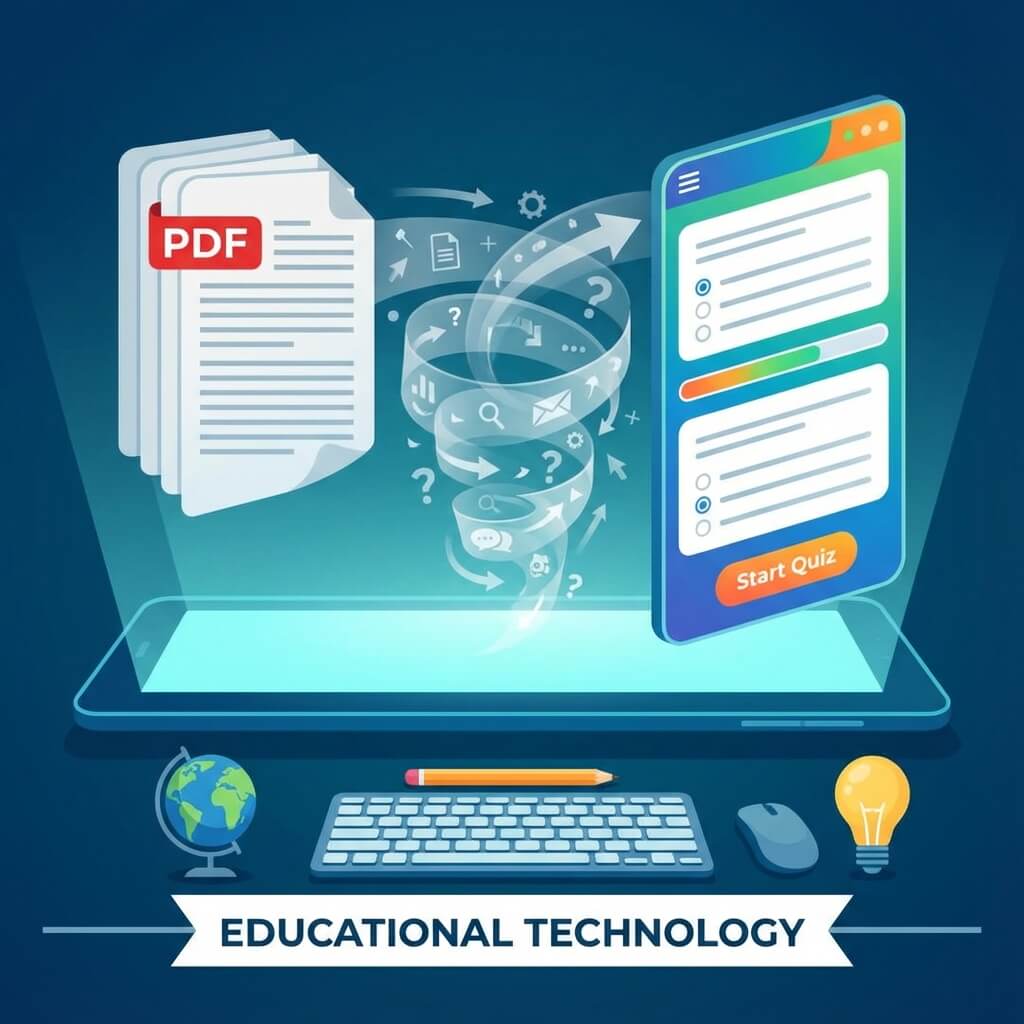
Imagine transforming a 50-page PDF textbook chapter into an interactive quiz in just minutes, not hours. With AI-powered tools like AdvanceQuiz, this isn't just possible—it's remarkably easy. This comprehensive guide will walk you through the entire process of converting your PDF documents into engaging, educational quizzes that students will actually enjoy taking.
Why Convert PDFs to Interactive Quizzes?
Before diving into the how, let's understand the why. PDF documents are static—students read them passively, often without truly engaging with the material. Interactive quizzes transform this passive reading into active learning, which research shows dramatically improves retention and understanding.
- Active Recall: Quizzes force students to retrieve information, strengthening memory
- Immediate Feedback: Students learn what they know and don't know instantly
- Engagement: Interactive formats hold attention better than passive reading
- Assessment Integration: Create assessments directly from your teaching materials
- Time Efficiency: Save hours of manual question creation
- Consistency: Ensure quizzes accurately reflect document content
Step 1: Prepare Your PDF Document
While AdvanceQuiz's AI can handle most PDF formats, a few simple preparations can improve results. Ensure your PDF contains searchable text (not just scanned images). If you have a scanned document, use OCR (Optical Character Recognition) software first. Also, consider which sections of the document are most suitable for quiz questions.
- Check that text is selectable (not image-based)
- Remove any watermarks or headers/footers that might confuse the AI
- Identify key chapters or sections for focused quiz generation
- Consider the length—longer documents may need to be processed in sections
Step 2: Upload Your Document to AdvanceQuiz
The upload process is straightforward. Navigate to AdvanceQuiz's quiz creation interface and select the 'PDF to Quiz' option. You can either drag and drop your file or use the file browser to select it. AdvanceQuiz supports PDF files up to 50MB in size, which covers most textbook chapters and study guides.
Once uploaded, the AI begins analyzing your document. This typically takes 30 seconds to 2 minutes, depending on document length. During this time, the AI is identifying key concepts, important facts, definitions, and relationships between ideas—all the elements that make for great quiz questions.
Step 3: Configure Your Quiz Settings
After analysis, you'll be presented with configuration options. This is where you customize the quiz to match your educational goals. Don't worry—the AI provides intelligent defaults, but you have full control.
- Number of Questions: Choose how many questions to generate (10, 20, 30, or custom)
- Question Types: Select from MCQ, True/False, Fill-in-the-blank, or a mix
- Difficulty Level: Easy, Medium, Hard, or Mixed difficulty
- Focus Areas: Prioritize certain topics or sections of the document
- Include Explanations: Toggle whether to auto-generate answer explanations
Step 4: Review and Edit Generated Questions
The AI generates questions within seconds. You'll see a preview of all questions with their answer options. While AI-generated questions are typically high quality, we always recommend reviewing them. You might want to adjust wording, add context, or remove questions that don't fit your needs.
"AI gives you an excellent starting point—often 90% of the way there. A quick human review ensures the final 10% is perfect for your specific students and learning objectives."
— Professor Amanda Richardson, University of Melbourne
The editor interface makes modifications easy. Click any question to edit the stem, change answer options, adjust the correct answer, or add explanations. You can also delete questions that don't meet your standards or regenerate specific questions if needed.
Step 5: Enhance with Multimedia (Optional)
Take your quiz beyond text by adding images, diagrams, or references back to the original document. If your PDF contained important figures or charts, you can add these to relevant questions for visual reinforcement. This multimedia approach caters to different learning styles and increases engagement.
Step 6: Set Quiz Parameters
Before publishing, configure how students will experience the quiz. These settings significantly impact the assessment experience.
- Time Limits: Set per-question or total quiz time limits
- Attempt Limits: Allow one attempt or multiple tries
- Question Order: Randomize to prevent copying
- Answer Order: Shuffle answer options for MCQs
- Feedback Timing: Show feedback immediately, after submission, or after deadline
- Pass Score: Set minimum passing percentage if applicable
Step 7: Publish and Share
Your quiz is ready! AdvanceQuiz provides multiple sharing options. Generate a direct link, create a QR code for easy mobile access, or integrate with your learning management system. For live classroom sessions, you can host interactive quiz games where students compete in real-time.
Pro Tips for Better PDF-to-Quiz Conversions
- Break long documents into chapters for more focused quizzes
- Use well-structured PDFs with clear headings for better AI analysis
- Combine document-based questions with custom questions for comprehensive coverage
- Generate multiple quiz versions from the same document for retakes or different classes
- Save frequently used settings as templates for future conversions
- Review the source text reference for each question to verify accuracy
Supported Document Types
While this guide focuses on PDFs, AdvanceQuiz's AI works with multiple document formats. You can also convert Word documents (DOCX), PowerPoint presentations (PPTX), and even images of text (using built-in OCR). This flexibility means you can turn virtually any educational content into an interactive quiz.
Common Use Cases
Educators worldwide use PDF-to-quiz conversion in countless creative ways:
- Textbook Chapters: Create chapter review quizzes aligned with assigned readings
- Research Papers: Test student comprehension of academic articles
- Training Manuals: Convert corporate training materials into knowledge checks
- Policy Documents: Ensure employees understand compliance requirements
- Study Guides: Transform study materials into self-assessment tools
- Historical Documents: Create engaging quizzes from primary sources
Conclusion: From Static to Interactive in Minutes
Converting PDFs to interactive quizzes used to require hours of manual work. With AI-powered tools like AdvanceQuiz, you can transform any document into an engaging assessment in minutes. Whether you're a teacher preparing for class, a corporate trainer developing compliance assessments, or a student creating study materials, PDF-to-quiz conversion is now accessible to everyone.
Ready to try it yourself? Sign up for AdvanceQuiz free and experience the magic of AI-powered document conversion. Your PDFs are waiting to become interactive learning experiences!
Ready to Transform Your Quiz Creation?
Join thousands of educators using AI to create engaging assessments in seconds.
Get Started Free